
1
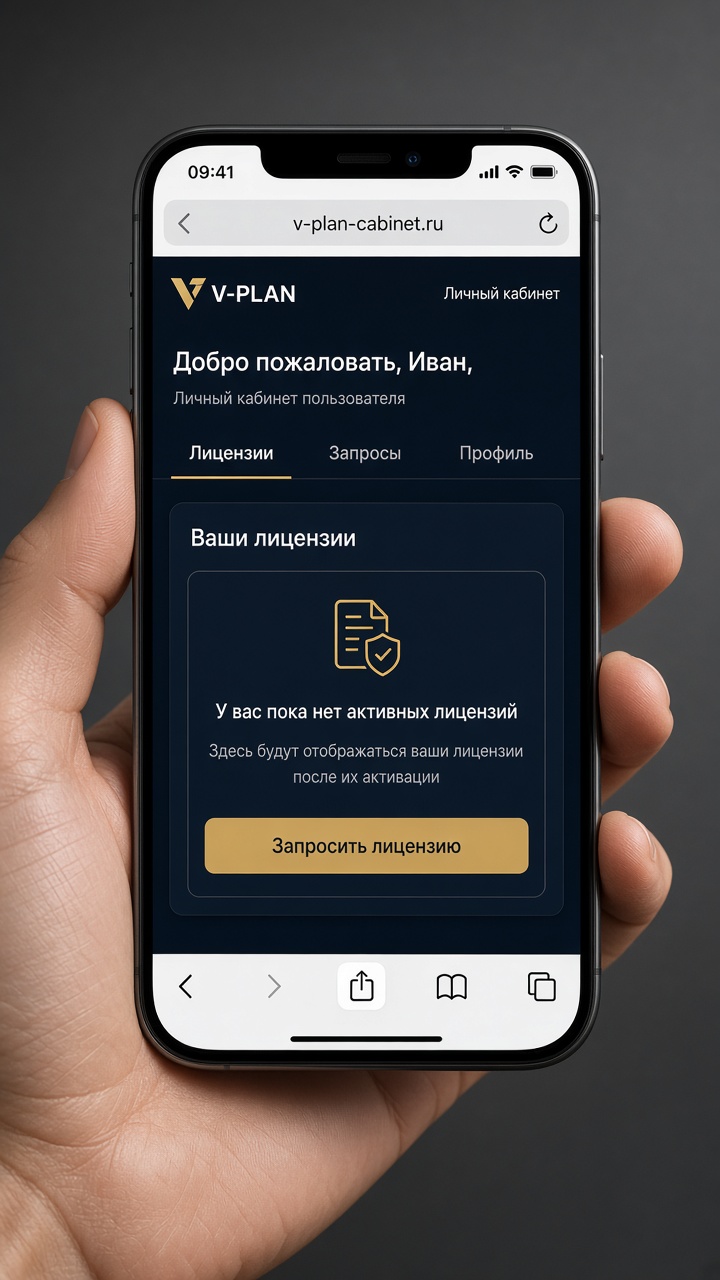
Open the account in Safari
Sign in. Tap Share at the bottom (square with an arrow).
V-PLAN app
This is not an App Store download. You add a shortcut to the cabinet. It looks like an app. It opens licenses, billing and your code, not the marketing site.
1. Open the account firstAdd the shortcut from the account page in Safari (iPhone) or Chrome (Android). If you add it from the homepage, the phone may remember the website. We redirect that case too, but the account page is safer.
1
Sign in. Tap Share at the bottom (square with an arrow).
2
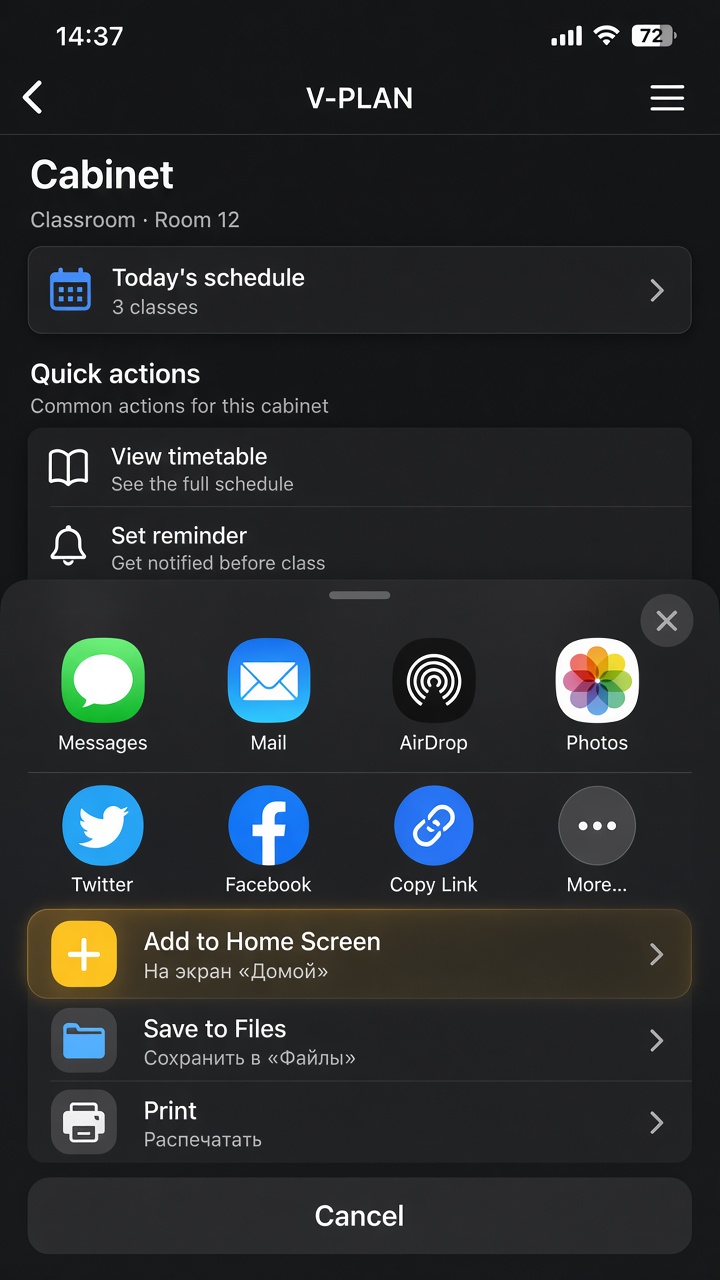
Scroll and tap Add to Home Screen. Keep the name V-PLAN, then Add.
3
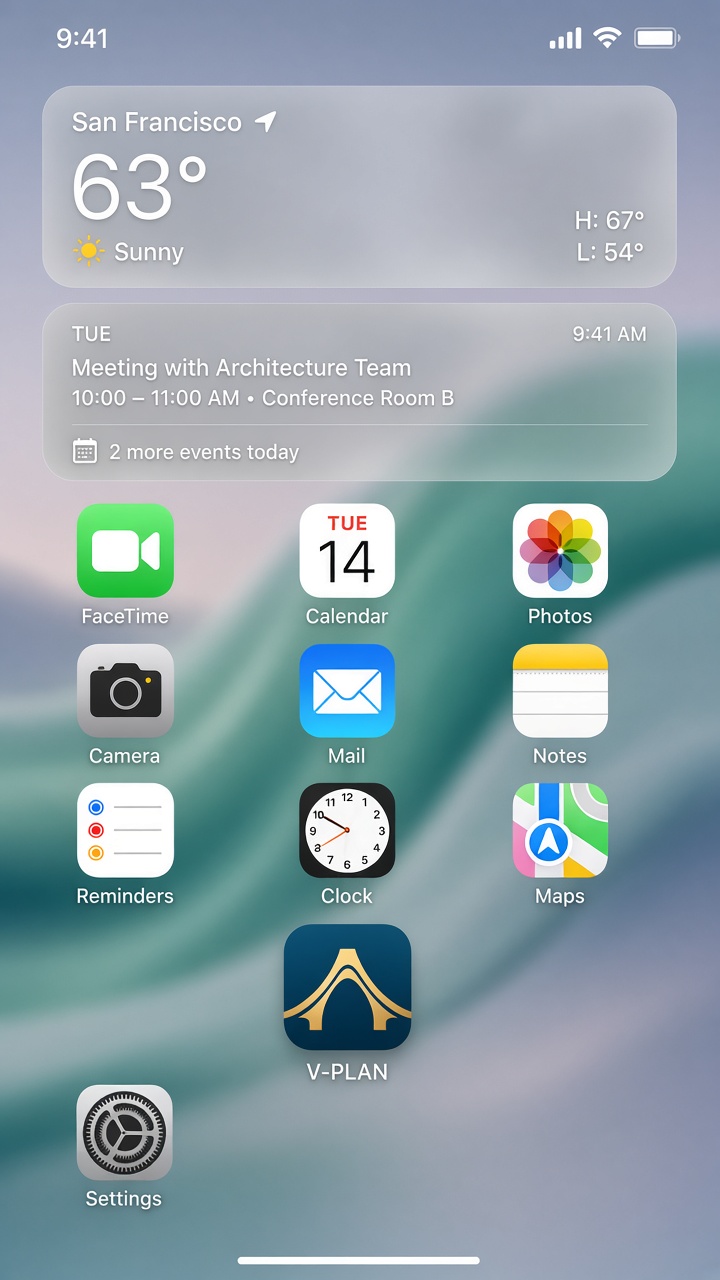
The icon opens the account, not the website.
1
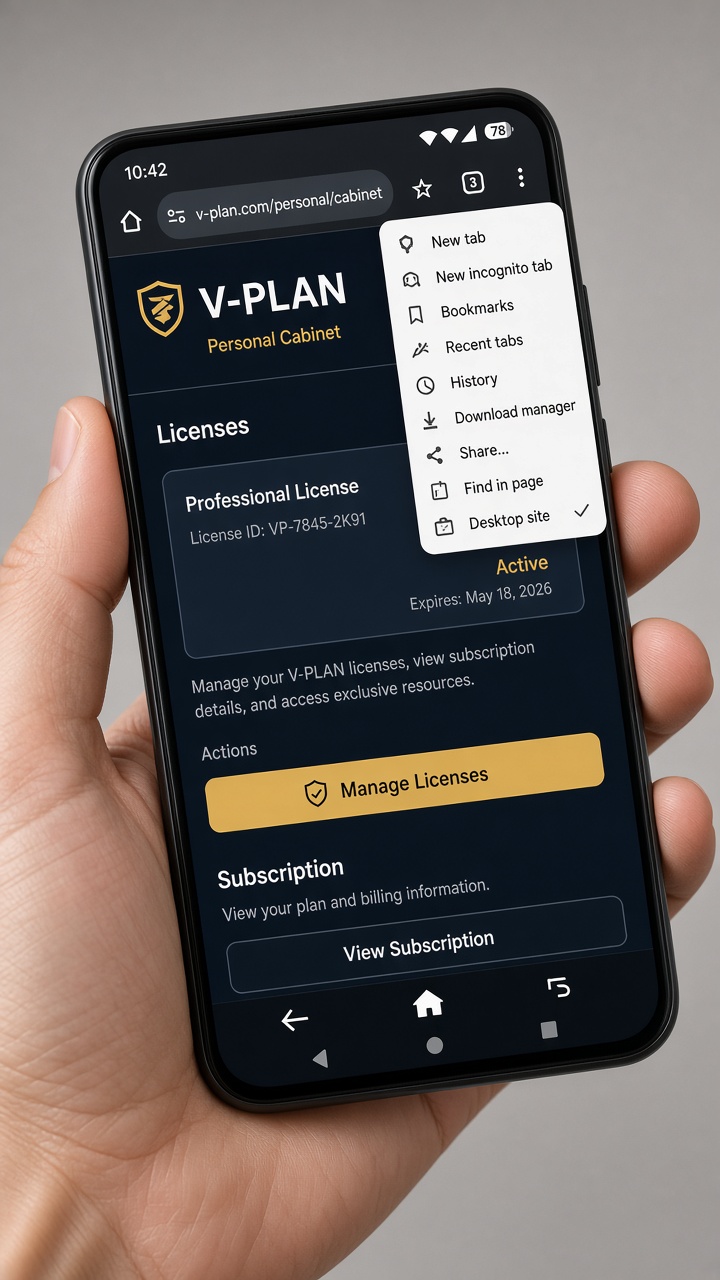
Sign in. Tap the three dots at the top right.
2
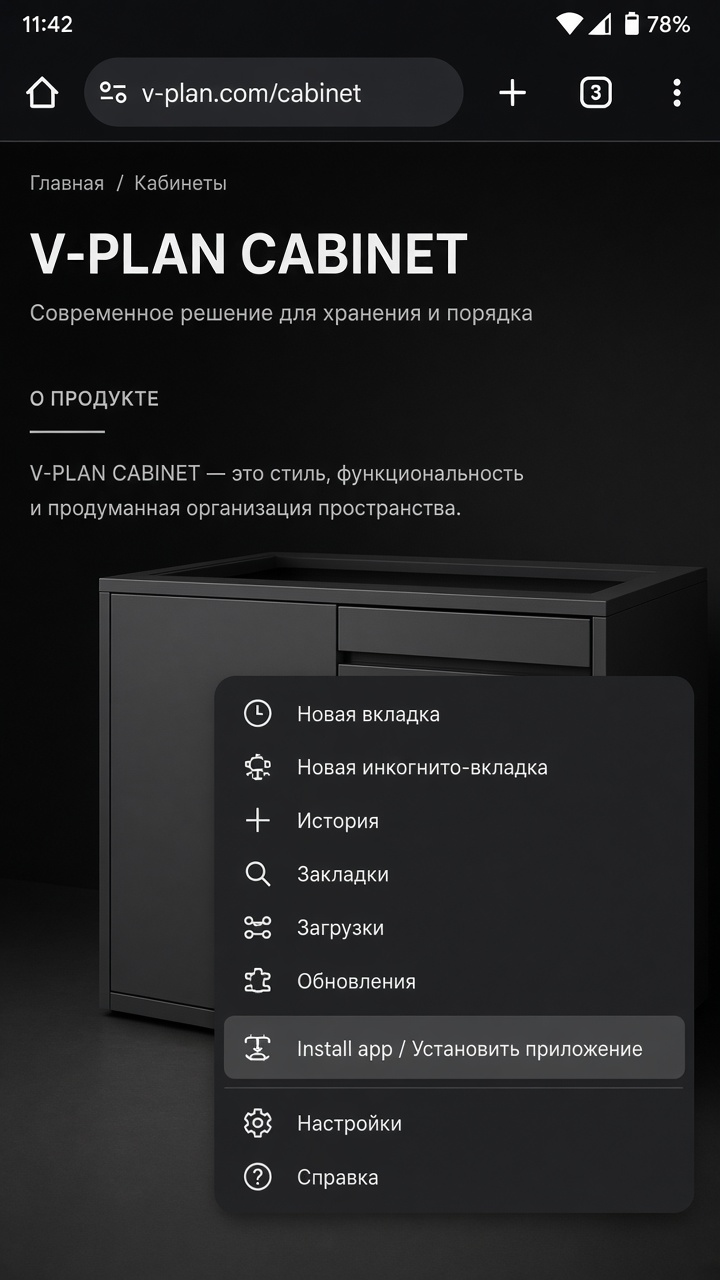
Choose Install app or Add to Home screen, then confirm.
3
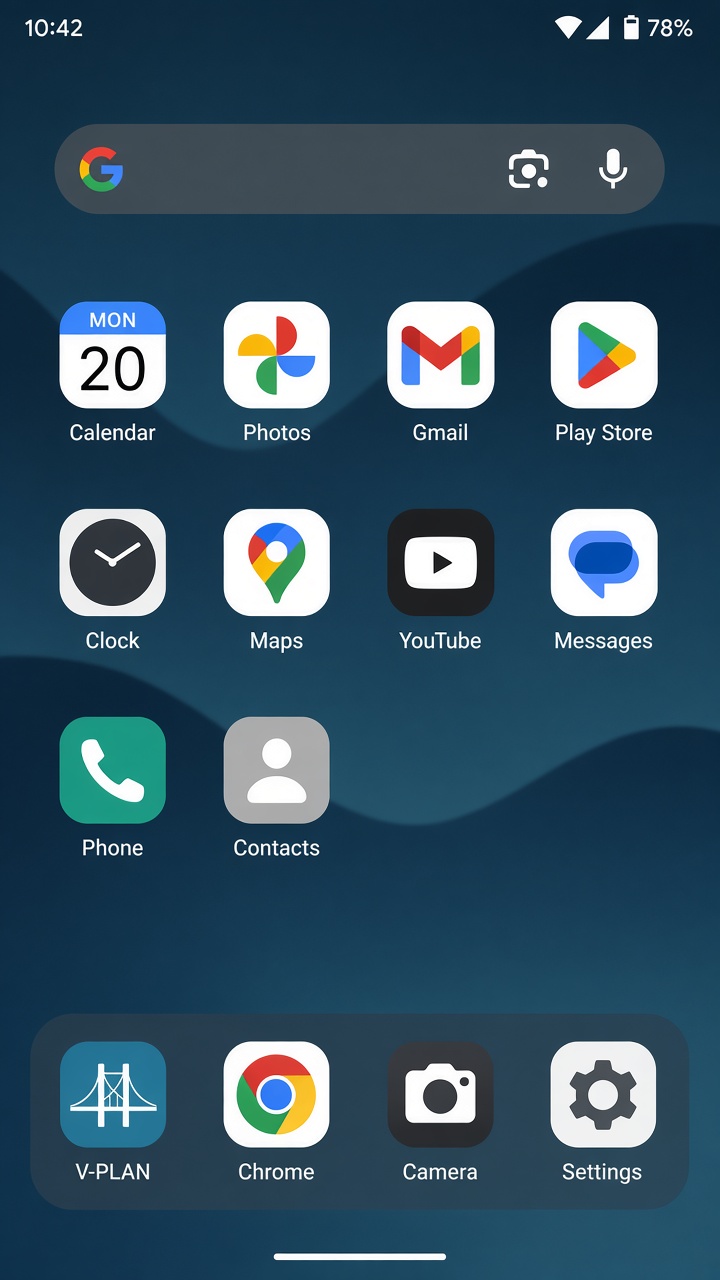
The shortcut goes straight to the account.